
Practical examples
Set up a readable GPS speedometer: units, signal, and HUD
ClearSpeed GPS shows speed from your device's location data. It is useful when you want a large, simple display, but GPS quality depends on reception and the device. Set up the app before moving and keep attention on your surroundings.
Choose the right speed unit
Select MPH, KM/H, or knots for the activity you are planning. Allow the location access the app needs and check the signal status before relying on the display. Compare the selected unit with any other instrument you are using so you do not mistake a unit difference for a speed error.
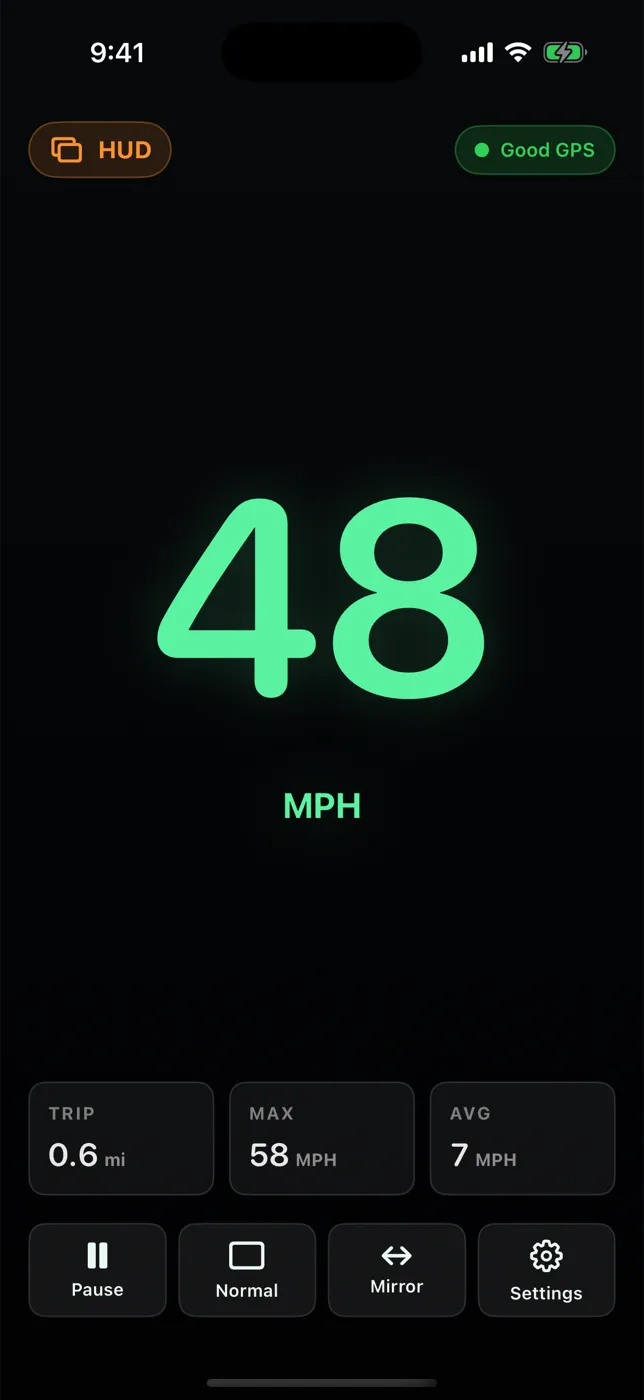
Try the mirrored HUD display while stationary
Enable the HUD mirror mode and check the reflection in the intended position while parked. Adjust the day or night display for readability. Visibility varies with glass, lighting, mounting position, and device brightness. Use a safe mount and keep the display out of your view of the road.
Record a trip and review History
Tap Start before you set off, Pause for stops you don't want counted, and End Trip when you arrive. The summary (date, start and end time, duration, distance, average and max speed) is saved on the device under Settings, History. ClearSpeed measures only while it is open on screen, and GPS interruptions pause the totals, so treat them as app estimates rather than certified measurements. Battery Saver is available when power use matters.
Access and device requirements
$3.99 one-time purchase in the U.S. App Store; no subscription, in-app purchases, or ads. Other storefront prices may differ.
iPhone and iPad; requires iOS or iPadOS 17.0 or later. iPad needs a GPS-equipped (Wi-Fi + Cellular) model.
View on the App Store Scan with your iPhone